
Financial Resources for Students: FW90
A roster needs to be completed through FW90: Financial Resources for Students when you:
- Have a scholarship or a financial resource to award to students
- Need to revise amount on previously awarded scholarship
- Need to remove and/or re-award a scholarship
The information below will guide you through how to complete, make changes to, and interpret the rosters completed through FW90.
- Complete a first time roster
Go to Financial Resources for Students (FW90)
- Click Create New Student Roster
- Choose the appropriate Award Year and Click Go.
- Enter the Appropriate Item Type for the Award
- If you know the Item Type, enter it and click Populate Data.
- If you do not know the Item Type, click Search for Item Type and enter the name of the scholarship into the Item Type Description. Click Search
- Choose the appropriate item type.
- Award Year, Item Type, Workday Acct Number, and Account Name should already be populated as shown below
- Choose the department that scholarship is being awarded from.
- Click Choose Contact Person
- Enter the name of the person whom shall be contacted in case of questions about the roster.
- Search to receive the contact information
- Click Set Person
- Click Choose Responsible Party
- Follow instructions for "Choose Contact Person"
- Click Enter Students
- In the Student Name column, Enter the student's ID
- In the Original Award? column, choose Yes
- Click Add
- In the Original Award column, enter the amount you would like to award for fall, spring, and/or summer and click Save.
- To give approval for a student to keep the scholarship with less than full-time enrollment, check the boxes in the Payment approved with less than FT enrollment.
- Follow the same procedure for each student.
- Double check that all student and award information is correct. If you need to make changes, select the student and click Edit Student or Remove Student.
- Click Choose Responsible Party
- Follow instructions for "Choose Contact Person"
- Click Enter Students
- In the Student Name column, Enter the student's ID
- In the Original Award? column, choose Yes
- Click Add
- In the Original Award column, enter the amount you would like to award for fall, spring, and/or summer and click Save.
- To give approval for a student to keep the scholarship with less than full-time enrollment, check the boxes in the Payment approved with less than FT enrollment.
- Follow the same procedure for each student.
- Double check that all student and award information is correct. If you need to make changes, select the student and click Edit Student or Remove Student.
- If you are not ready to submit the roster, click Save for Later. You can find this later in View My Forms on the FW90.
- If all awards are correct, click Submit Form
- Change the amount on a submitted roster
To search for a specific roster that you have submitted, go to Financial Resources for Students (FW90) and click View My Forms and click Go
You cannot edit a form that is pending. If pending, ask the appropriate office (Financial Aid, Foundation, or Sponsored Programs) to reject the form back to you if the form needs corrections.
- If you need to revise an already processed roster, you will need to Create New Student Roster.
- See Creating a First Time Roster instructions to begin the roster.
- When you have entered the Award Year, Item Type, Oracle Acct Number, and Account Name, click Enter Students.
- Enter the student's ID number in the Student Name column.
- In the Original Award column, choose No.
- Click Add.
- In the Original Award column enter the original amount awarded to the student.
- In the Revised Award column enter the amount that the student will NOW be awarded, and Save.
- After checking that all amounts are correct, Save for Later or Submit Form.
- Give permission with less than full-time enrollment
Award a student following these procedures if you would like the scholarship to pay with less than full-time enrollment
If you need to revise an already processed roster, you will need to Create New Student Roster.
See FW90 Rosters instructions to begin the roster.
When you have entered the Award Year, Item Type, Oracle Acct Number, and Account Name, click Enter Students.
In the Student Name column, Enter the student's ID
In the Original Award? column, choose Yes and follow these steps if you have not previously awarded this scholarship for this student.
Click Add
In the Original Award column, enter the amount you would like to award for fall, spring, and/or summer and click Save.
To give approval for a student to keep the scholarship with less than full-time enrollment, check the boxes in the Payment approved with less than FT enrollment column.
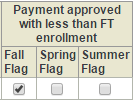
When you save the student's information, the box should show as below:
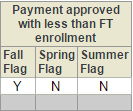
Follow the same procedure for each student.
If you have previously awarded the scholarship to this student, choose No and follow these steps:
Click Add
In the Original Award column, enter the amount that you had previously awarded the scholarship to the student for.
In the Revised Award column, enter the same amount again. If you are changing the amount of the scholarship, enter the new amounts in the Revised Award column.
Check the Adjusted Amount column to make sure that you do not accidently make unintended changes to the amount of the scholarship.
To give approval for the student to have the scholarship with less than full-time enrollment, check the boxes in the Payment approved with less than FT enrollment column.
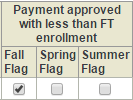
When you save the student's information, the box should show as below:
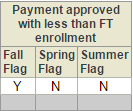
Double-check that all student and award information is correct. If you need to make changes, select the student and click Edit Student or Remove Student.
If all awards are correct, click Submit Form.
- Remove a student & Re-award the Scholarship
- To search for a specific roster that you have submitted, go to Financial Resources for Students (FW90) and click View My Forms and Go.
- You cannot edit a form that is pending or processed. If pending, ask the appropriate office (Financial Aid, Foundation, or Sponsored Programs) to reject the form back to you if the form needs corrections.
- If you need to revise an already processed roster, you will need to Create New Student Roster.
- See Creating a First Time Roster instructions to begin the roster.
- When you have entered the Award Year, Item Type, Oracle Acct Number, and Account Name, click Enter Students.
- To Remove the Student:
- Enter the student's ID number in the Student Name column.
- In the Original Award column, choose No.
- Click Add.
- In the Original Award column enter the original amount awarded to the student.
- In the Revised Award column enter "0", and Save.
- To Re-award that Scholarship:
- Enter the student's ID number in the Student Name column.
- In the Original Award column, choose Yes.
- Click Add.
- In the Original Award column enter the amount you wish to award the student.
- In the Revised Award column enter the amount to award, and Save.
- In the Comments section, list briefly your reasoning for removing the student.
- After checking that all amounts are correct, Save for Later or Submit Form.
- To search for a specific roster that you have submitted, go to Financial Resources for Students (FW90) and click View My Forms and Go.
- Award summer
When awarding a scholarship (that has previously been awarded for fall/spring), you will need a new item type number created specifically for summer.
- Search for the scholarship by typing in the name of the scholarship being used.
- If two Item Types show up with the same Oracle Acct Number, then one of them is the summer item type.
- Use the item type that has NOT been previously used for fall/spring.
- If no other item type shows up with the same Oracle Acct Number, contact: Michelle Herzberg or michelle.herzberg@uni.edu or 319-273-2701 and ask for the correct summer item type for the scholarship.
- If two Item Types show up with the same Oracle Acct Number, then one of them is the summer item type.
- See FW90 Rosters for further instruction in completing the roster.
- Search for the scholarship by typing in the name of the scholarship being used.